
Create your first presentation with AI
A practical GenPPT guide: write a brief, choose slide settings, review the generated deck and check your PowerPoint export.
Before you generate
Sign in and check your credit balance. The generation estimate appears beside the submit button; optional illustrations can add charges. Generating a deck and being allowed to download it are separate checks. Read the download dialog for your account’s current requirements.
1. Write a useful brief
Name your audience, purpose, slide structure and confirmed facts. Include source material you are allowed to upload. A precise brief gives you something concrete to review.
2. Choose how the slides are made
Select the slide count offered to your account and the output language. The presentation language is separate from the website language. AI Agent builds slide layouts; Nano Banana 2 creates image slides. Image slides export as full-page pictures, so their text is not individually editable in PowerPoint.
Open advanced settings to choose illustrations and web search. With search enabled, check every external fact and source. For a draft based only on your supplied material, turn search off and select No images if you do not need illustrations.
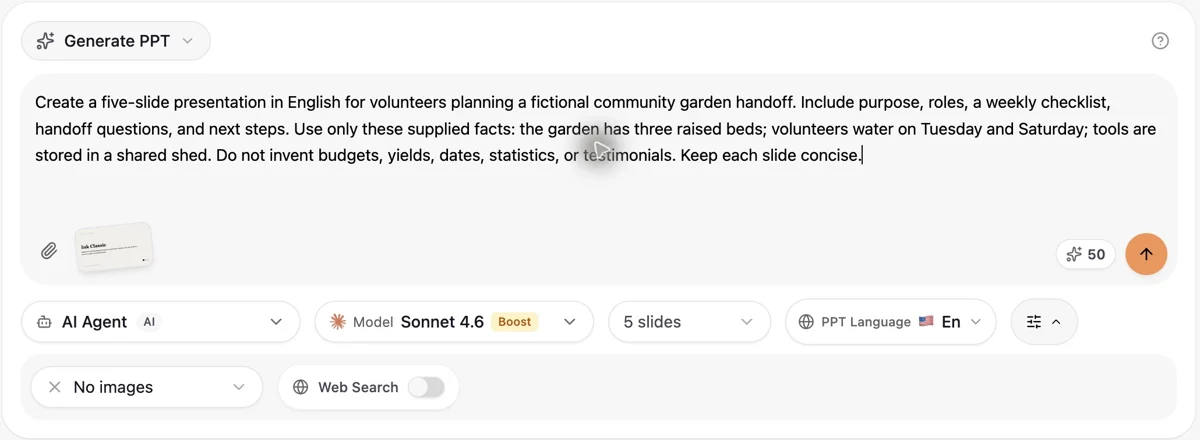
Actual GenPPT interface in English, captured on 14 October 2026 with an original fictional example and no customer data.
3. Generate and review in the workspace
Submit once and keep the workspace open while the task runs. The progress panel and slide area show the task’s current state; processing time varies. Read the completed slides for factual errors, missing context, crowded text and layout problems. Revise individual slides before exporting.
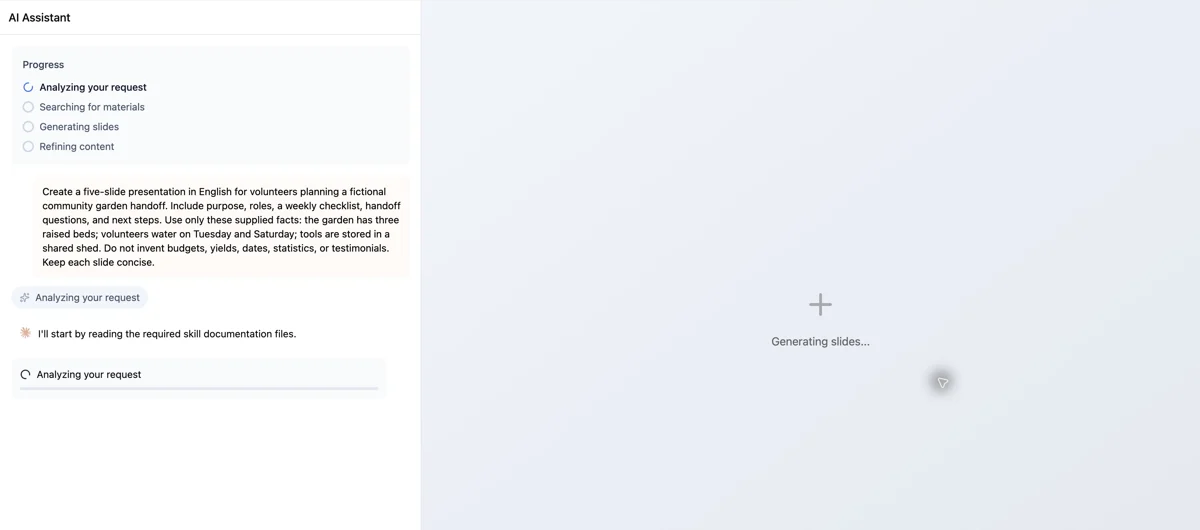
Actual GenPPT interface in English, captured on 14 October 2026 with an original fictional example and no customer data.
4. Export, then inspect the file
Open Export and select the available PowerPoint option. If the account dialog asks you to unlock downloads, follow the conditions shown there. An available export button does not guarantee that the task has finished.
Open the downloaded PPTX in your presentation software. Check slide count, fonts, line breaks and images. AI Agent exports can contain editable elements, but editability and layout depend on the actual content; inspect your own file rather than assuming every object can be edited.
A brief, five slides, a reviewed file
Follow one fictional community garden handoff from its original brief to an actual five-slide PowerPoint file.
The supplied facts
Three raised beds. Watering on Tuesday and Saturday. Tools in a shared shed. The brief asked for purpose, roles, a weekly checklist, questions and next steps.
AI Agent · 5 slides · English · No images or web search
Review is part of this example. We shortened the subtitle and clarified the shed label in the editor. The proposed roles and next steps are suggestions for the volunteers to agree on, not extra source facts.
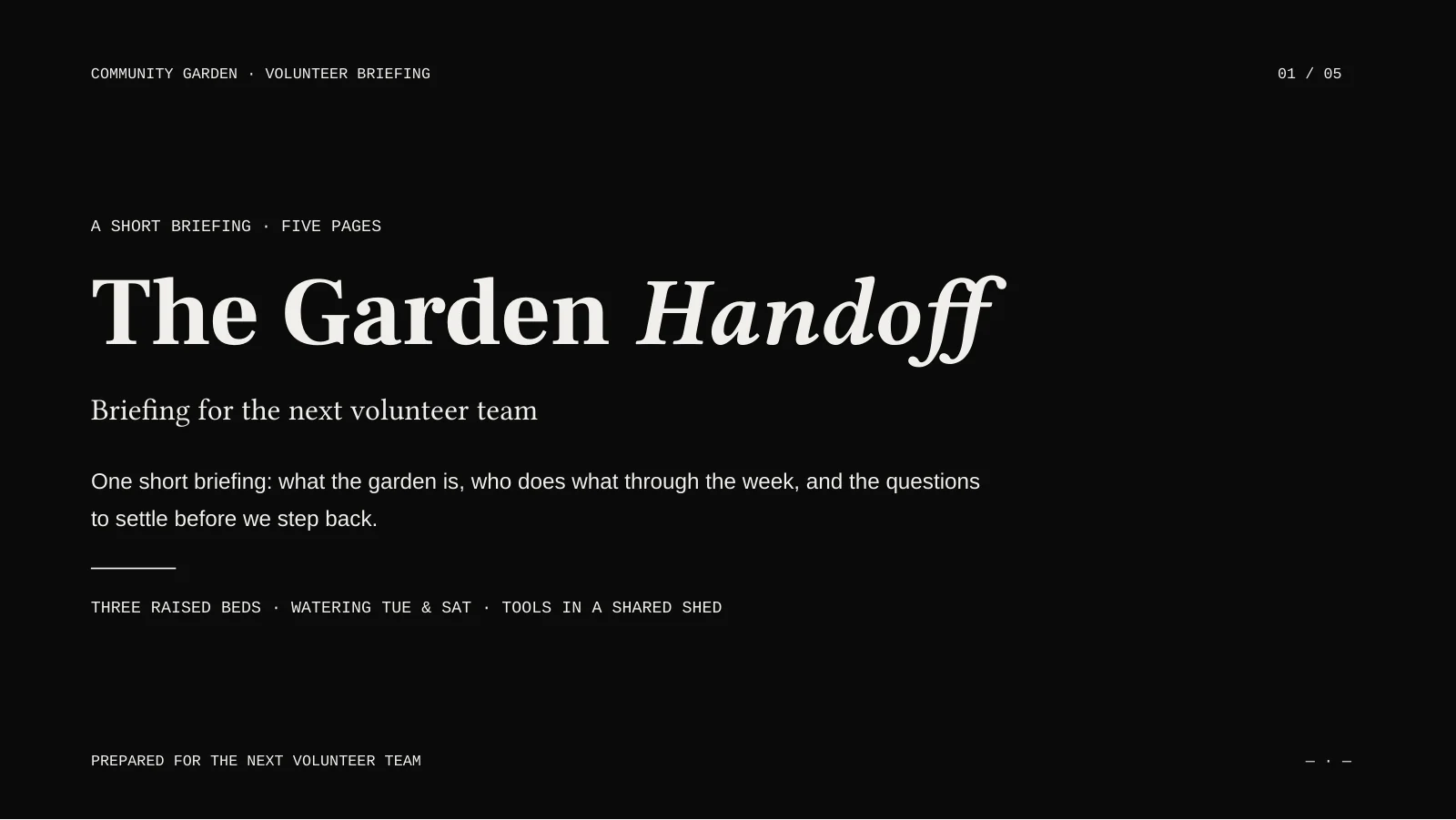
Original fictional example, reviewed and exported on 16 October 2026. The slides are in English; these images were rendered from the actual PPTX in LibreOffice. No customer data.
Edit, save and check again
Click the text you want to change, save it, then reload the workspace to confirm it was kept. This sample’s revised subtitle and shed label are also present in the downloaded PPTX.
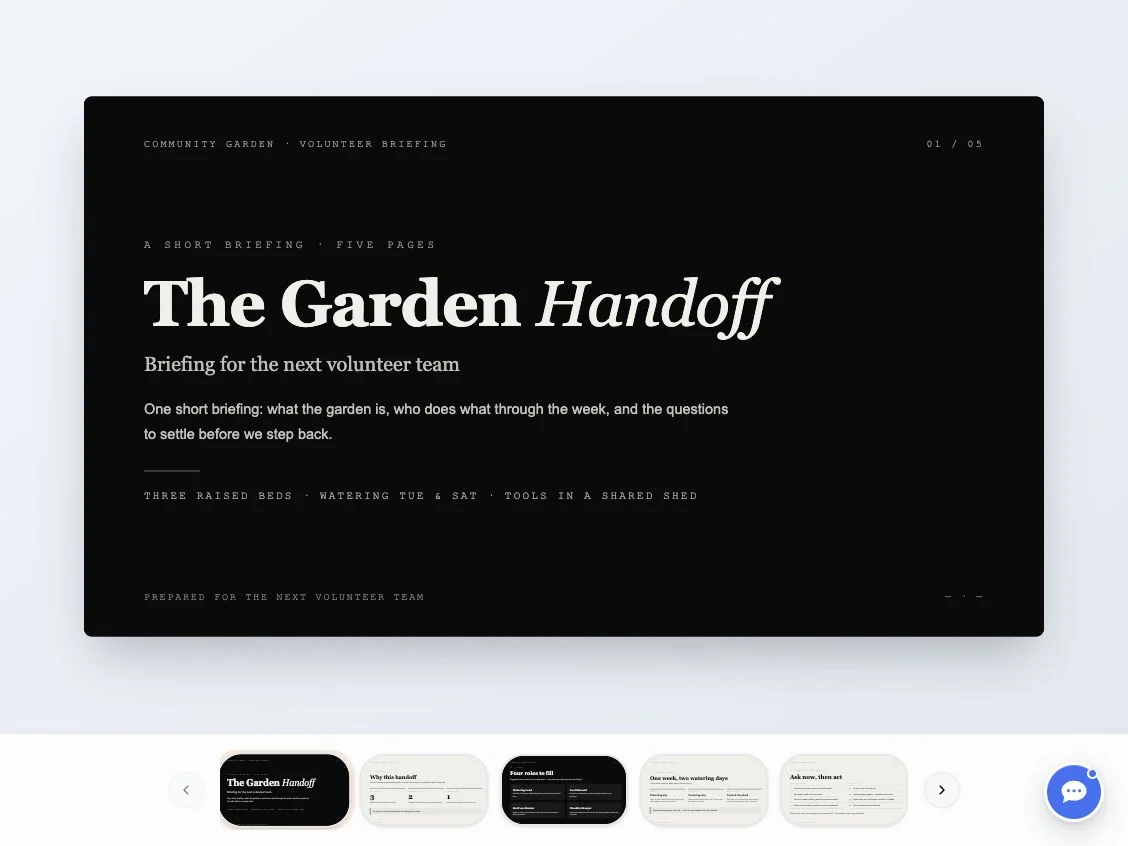
Actual English interface: brief and processing views captured on 14 October 2026; completed review and export views on 16 October 2026. This is the same fictional example, with no customer data.
Export the file you reviewed
Open Export and choose PPTX when your account allows it. Reopen the downloaded file to check the five pages, text and layout; a successful preview does not replace checking the export.
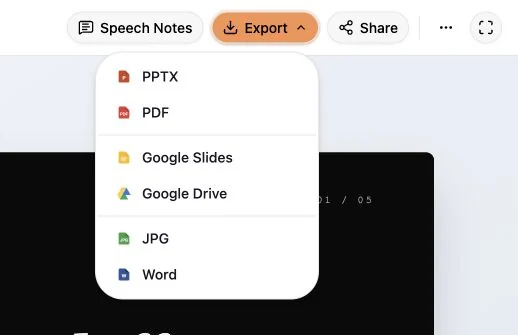
Actual English interface: brief and processing views captured on 14 October 2026; completed review and export views on 16 October 2026. This is the same fictional example, with no customer data.
If the task stalls
Return to the original workspace and check its progress before creating another task. Check sign-in, credits and the visible error message. Repeating generation can use more credits; do not assume a failed task is automatically refunded.