GenPPT AI PPT generator turns a brief, a document or an existing deck into a working draft. Supply the audience, the purpose and key source facts. Build a first version, review the structure, and decide what belongs in the final presentation.
Use GenPPT AI PPT maker to generate, beautify and enhance your slides in one place. Start with existing material instead of a blank slide. GenPPT helps organize that material; your judgment gives it context, checks the claims and makes the message your own.
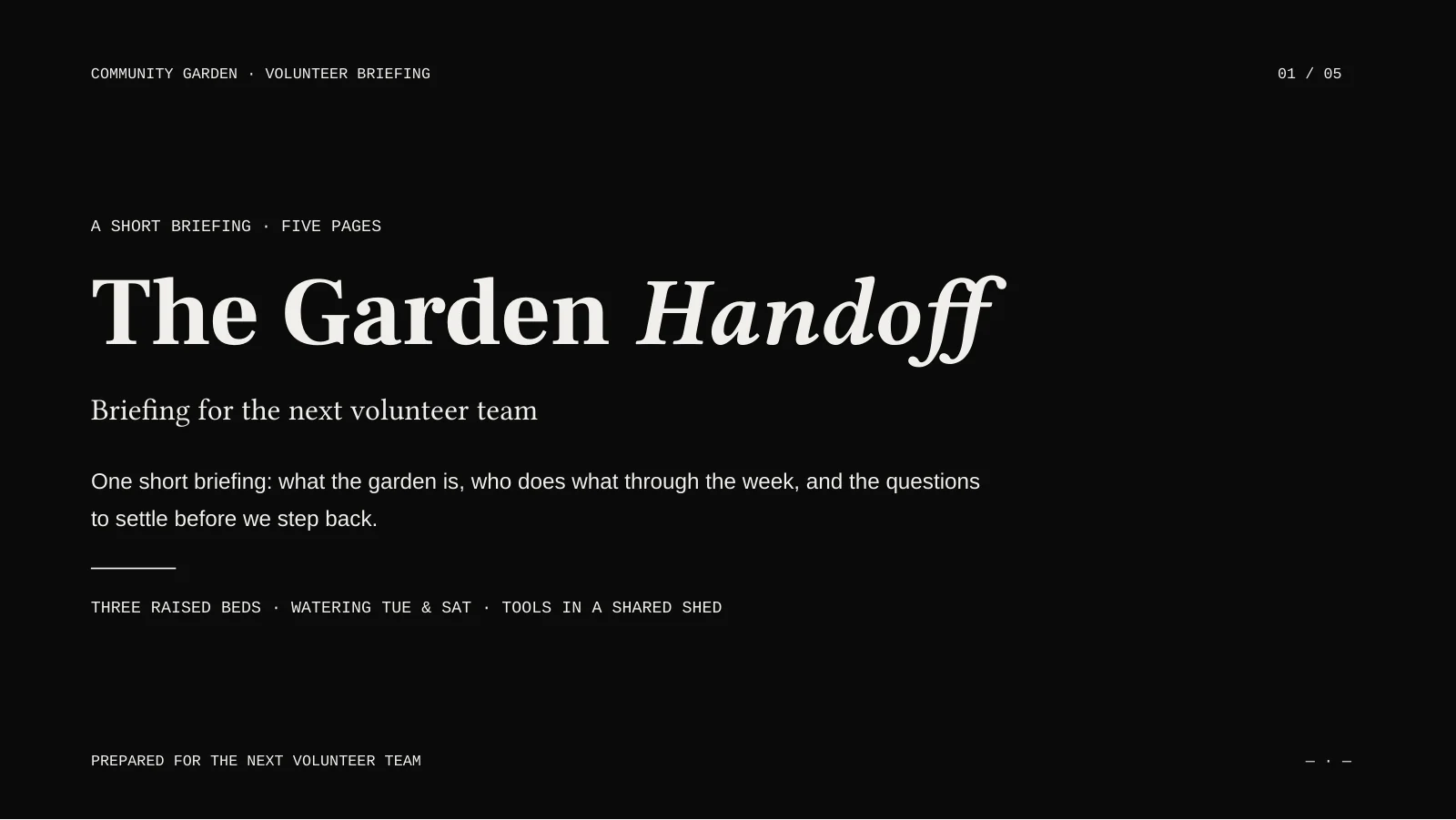
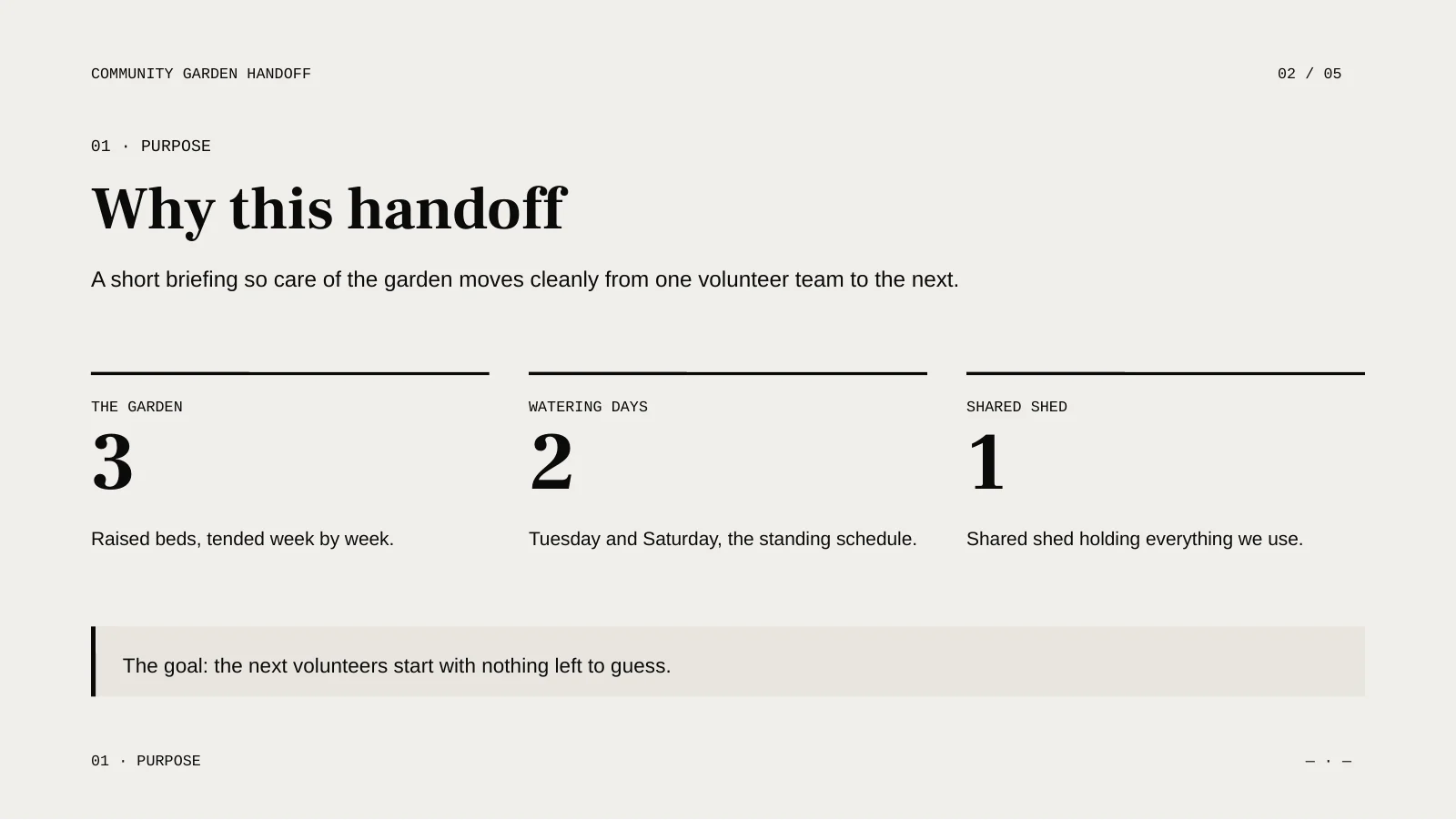
Three raised beds. Watering on Tuesday and Saturday. Tools in a shared shed. Those were the supplied facts for this original GenPPT example: a five-page briefing for a fictional community garden.
The GenPPT source brief
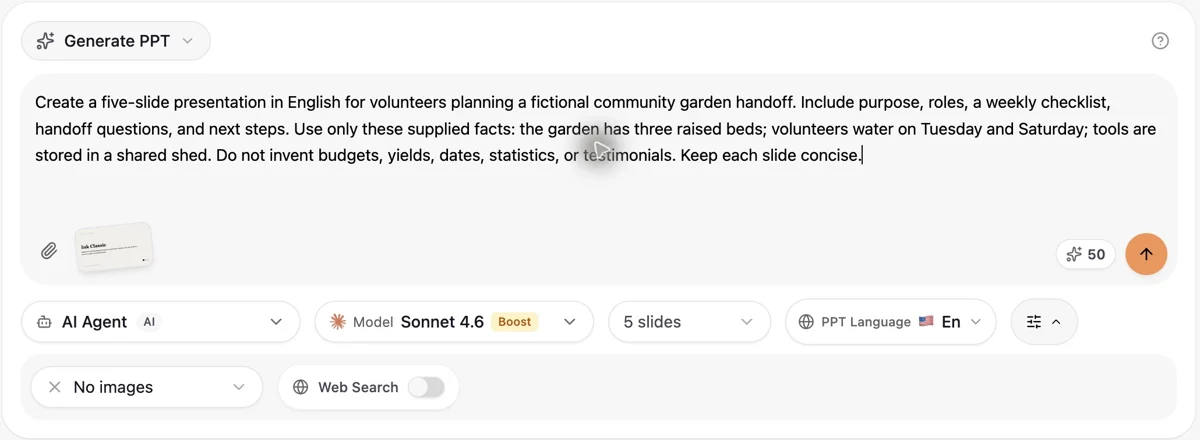
Create a five-slide presentation in English for volunteers planning a fictional community garden handoff. Include purpose, roles, a weekly checklist, handoff questions, and next steps. Use only these supplied facts: the garden has three raised beds; volunteers water on Tuesday and Saturday; tools are stored in a shared shed. Do not invent budgets, yields, dates, statistics, or testimonials. Keep each slide concise.
GenPPT export · cover of the five-page English example.
GenPPT export · the supplied facts, arranged into a purpose page.
GenPPT AI PPT generator turned the brief into a cover, a purpose page, suggested roles, a weekly checklist, and a final page of handoff questions and next steps. We inspected the draft, edited the wording, saved the changes and downloaded the file. The pages below come from that actual five-slide export.
Open the brief beside the finished presentation to compare retained and added details. Suggested roles and next actions are proposals, not extra facts from a real garden. This is an original product example, not client work or a customer success claim.
Original fictional example. Generated, edited and exported in the product; final sample checked on 16 October 2026.
Look beyond the GenPPT cover
These GenPPT slides show an AI PPT generator at work. Open images at full size, or inspect the downloaded PowerPoint to compare its text and layout.
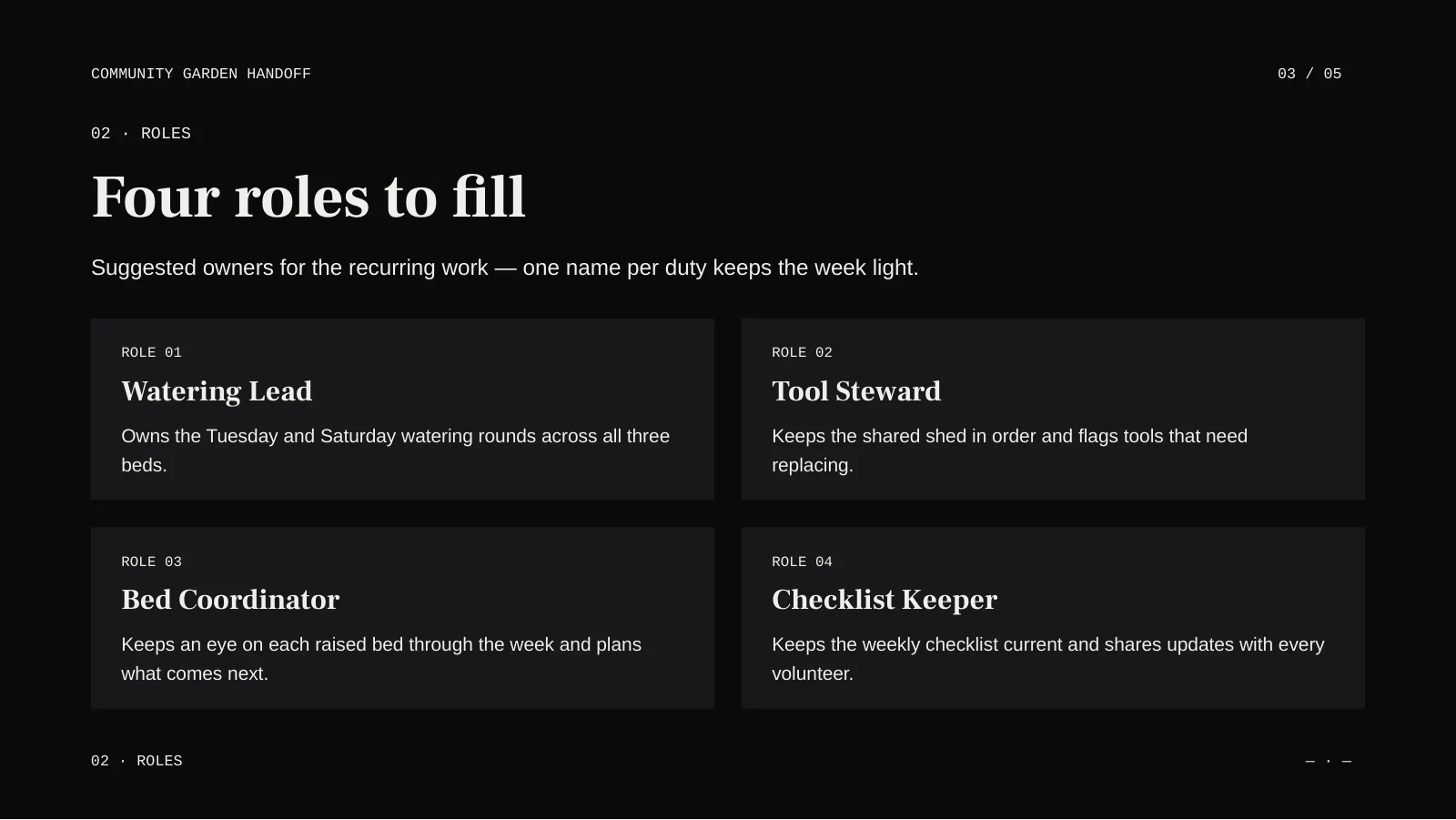
Page 3 of 5 · actual English export
Roles suggested by GenPPT
Four proposed duties give the handoff a practical structure: watering lead, tool steward, bed coordinator and checklist keeper. These AI-suggested roles came from GenPPT AI PPT maker, not supplied facts about a real team. The role labels make it easier to discuss who might take responsibility.
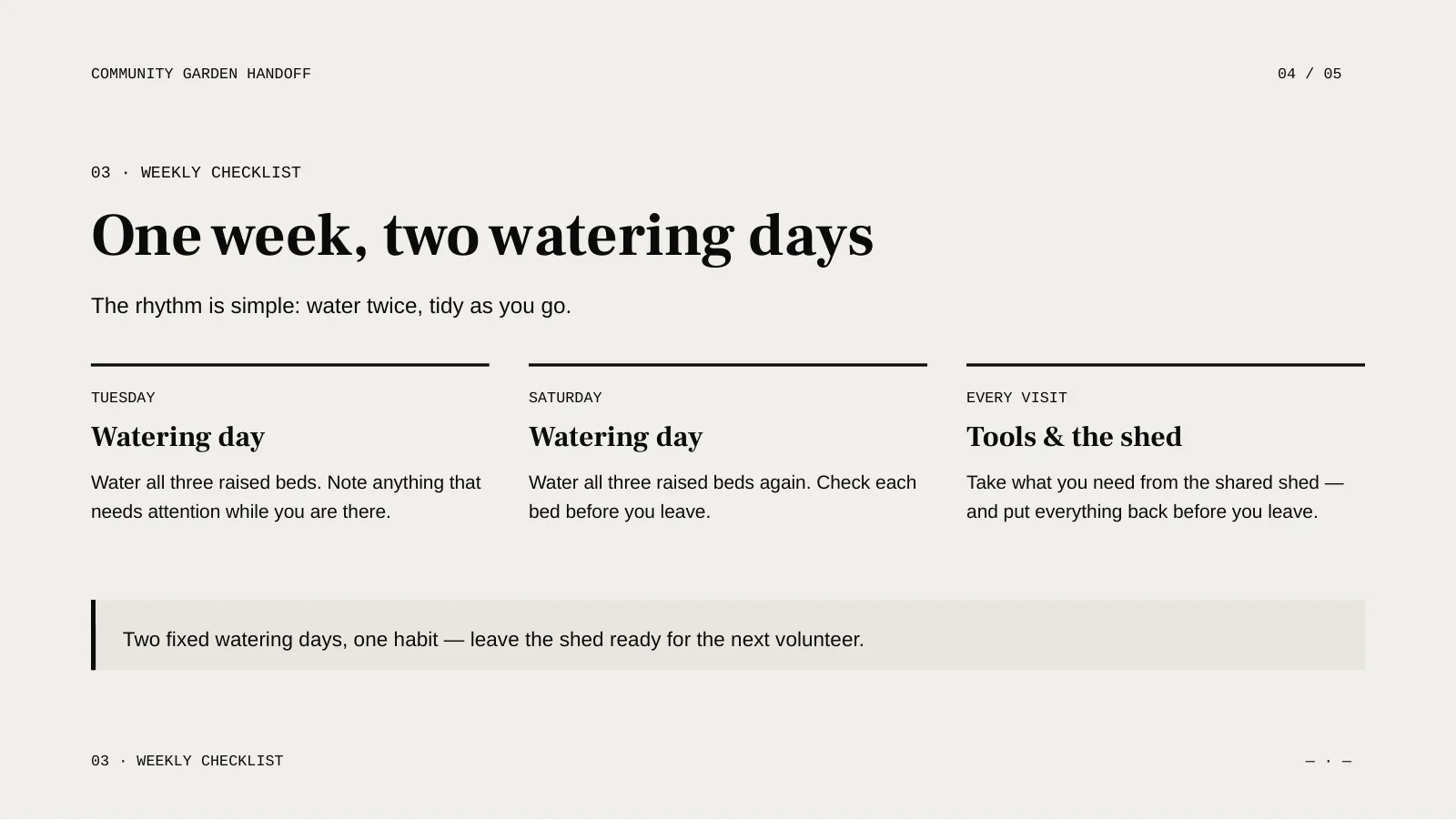
Page 4 of 5 · actual English export
A week at a glance
The checklist separates Tuesday, Saturday and tasks for every visit. It uses the supplied watering days and shared shed, then proposes a simple routine around them. Compare this GenPPT AI PPT generator output with the original brief to distinguish confirmed details from suggested actions.
Page 5 of 5 · actual English export
Questions before the handoff
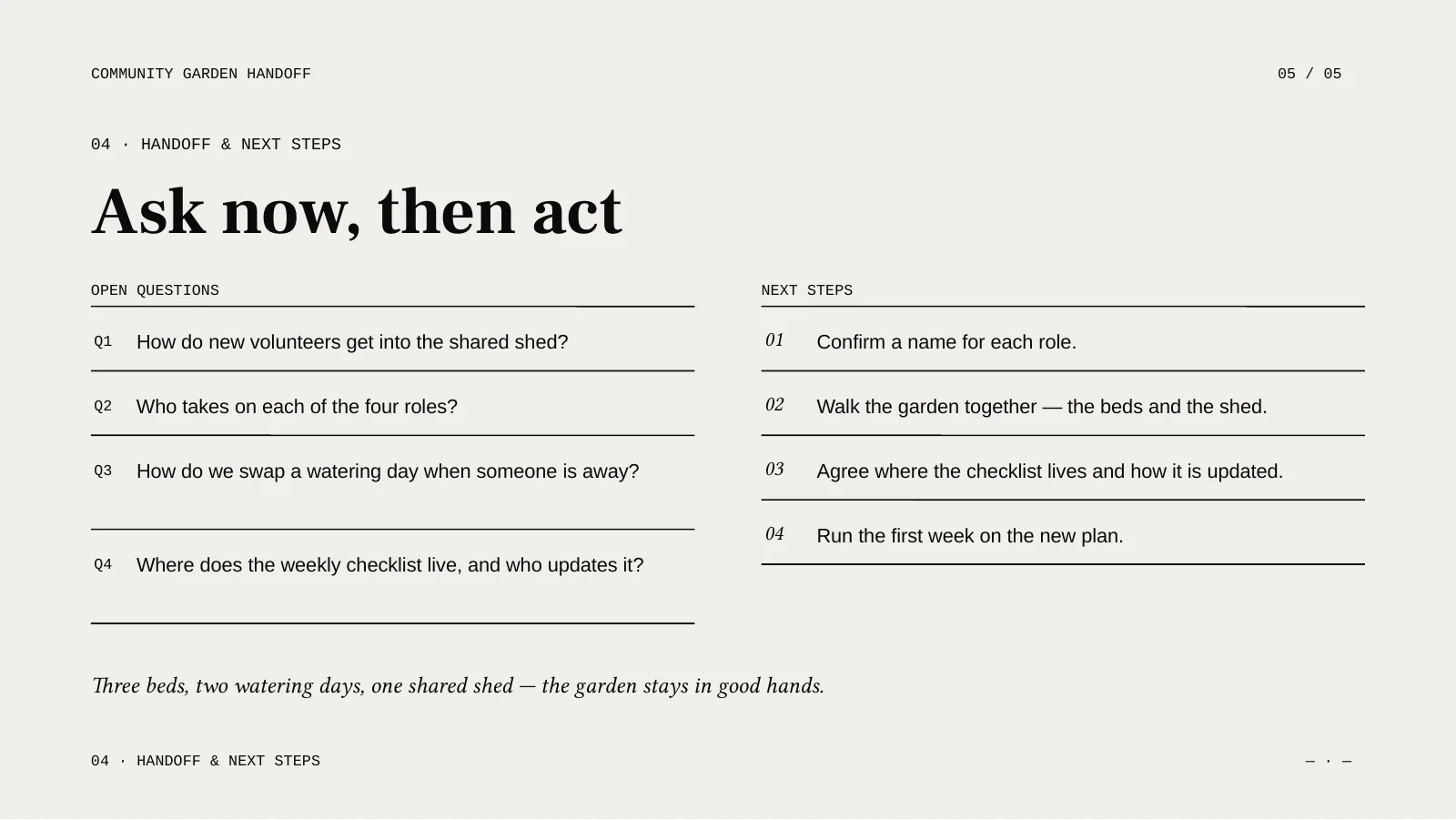
The closing page pairs open questions with suggested next steps. Access to the shed, role assignments and checklist ownership become talking points rather than invented answers. GenPPT AI presentation maker gives the next volunteer team a discussion aid to adapt to its actual circumstances.
02 / From the first sentence to the final file
Inside an AI PPT generator
GenPPT AI PPT generator gives you a first draft and a workspace for refining it. Follow the process below, shown with real interface captures from the garden example.
01
Give GenPPT a useful brief
Explain who will read the presentation, what they should understand and which details must stay accurate. Include a rough slide structure when you have one. An AI PPT maker needs specific direction: give GenPPT the message and the source facts, rather than asking for something impressive. Add only files you have permission to upload.
GenPPT input · English brief and generation settings, captured 14 October 2026.
02
Choose how you create with GenPPT
In GenPPT AI, select the available slide count, output language and rendering mode. Website language and presentation language are separate choices. Look at the credit estimate before submitting. Optional AI illustrations can change the cost. The two modes produce different output types, so choose one that suits your later edits.
A deliberate starting pointAudience. Purpose. Confirmed facts.Choose your settings
03
Make the draft your own
Review your GenPPT AI PPT generator draft in the workspace. Check the story, remove unsupported statements and revise anything that misses the audience. In the garden example, we changed the subtitle and a label, saved them and reloaded the GenPPT workspace to confirm the edits. Review every slide, including details beyond the cover.
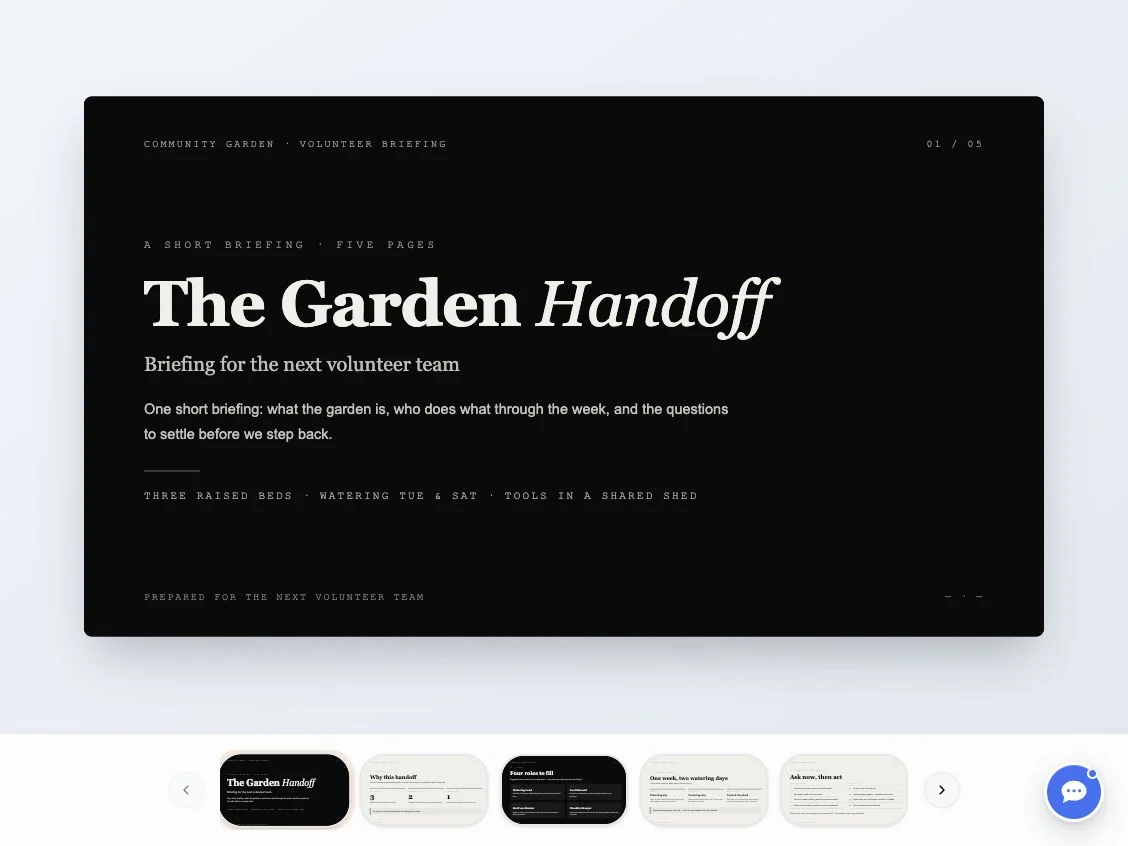
GenPPT workspace · the actual English garden example, captured 16 October 2026.
04
Open the exported file
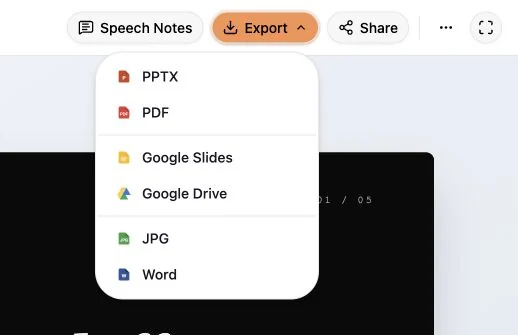
When your AI PPT generator draft is ready, use the GenPPT export menu. Download access has its own account requirements; read the dialog before proceeding. Open the PowerPoint in the software you intend to present with. Check typography, line breaks, pictures and object editing there. Inspect the downloadable example before starting.
GenPPT export menu · actual capture from the same workspace, 16 October 2026.
03 / A different direction for an existing deck
Keep the idea. Rethink your PPT.
Bring an existing PowerPoint to GenPPT AI presentation maker with a specific design request: quieter colors, a clearer hierarchy or less crowded slides. It interprets the source and creates a new arrangement. Describe what must be retained and compare the result with your original; redesign is not a lossless conversion.
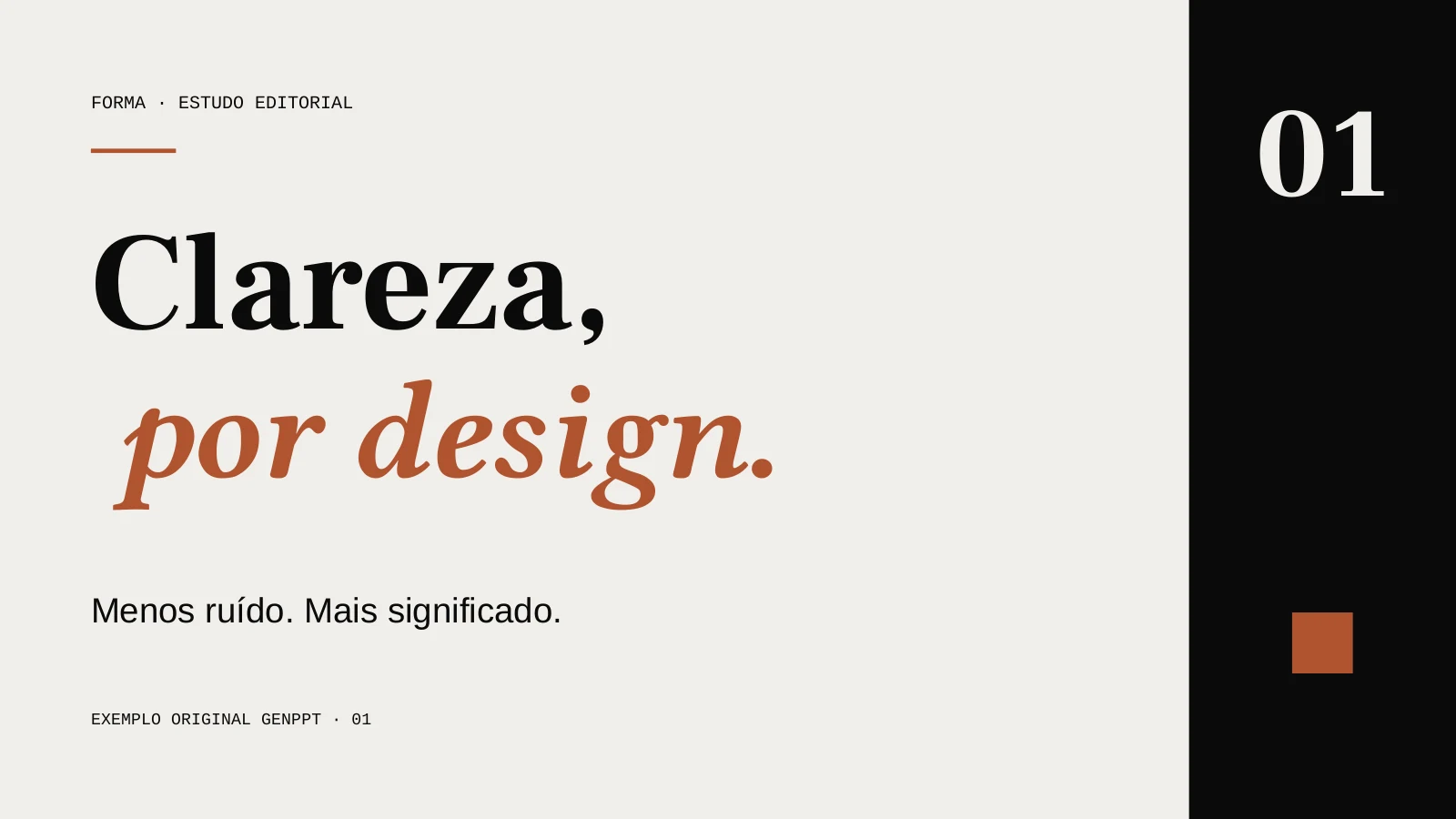
This example began with a two-page English editorial deck. The brief asked for cream, charcoal and terracotta, serif headings and sans-serif supporting text. GenPPT AI produced a Portuguese version with a new cover composition and numbered rows. Both the source and the actual exported result are available to compare.
Before · original English deckAfter · actual Portuguese output
Original GenPPT example, not client work. Two pages in each file; result verified 16 October 2026.
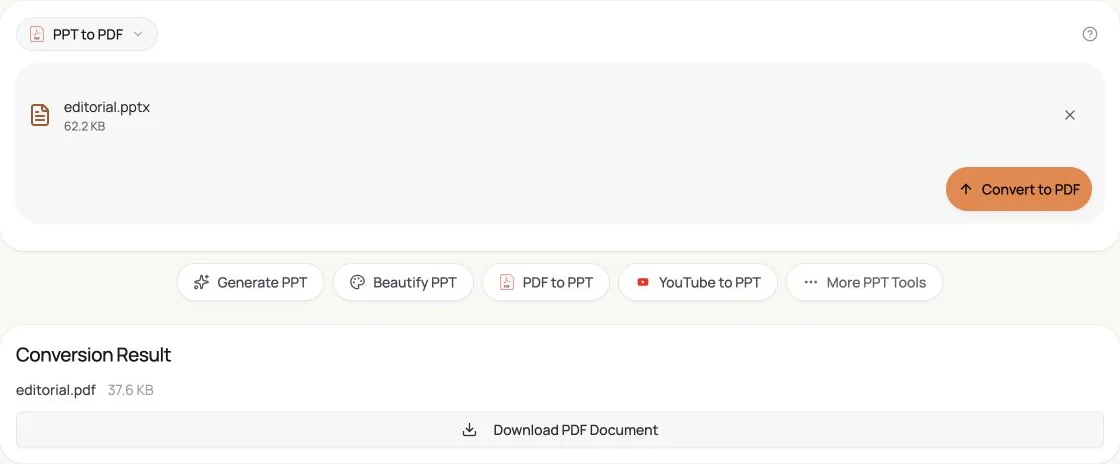
Your work may continue after using an AI PPT maker: a PDF to share, a set of images for a page or a smaller file to send. GenPPT includes conversion and organization tools alongside generation. Choose the tool for the job; these workflows have their own inputs, limits and download conditions.
The screenshot shows a real PDF conversion completed in GenPPT with our original editorial deck. You can inspect the sample PDF and the source PowerPoint yourself. For JPG output, GenPPT provides separate slide images. Review exported files before distributing them, especially when your deck uses unusual fonts, diagrams or complex layouts.
Give GenPPT AI PPT maker a specific job, then shape the draft around the conversation you need to have. A useful presentation starts with a clear purpose.
01
A team update with a decision to make
Give GenPPT confirmed progress, open questions and the decision you need from colleagues. Ask for a clear sequence: context, changes, options and next steps. GenPPT AI PPT generator can organize a draft while you check owners, dates and numbers. Keep proposals visibly separate from completed work. The draft provides a starting structure; your team supplies the evidence behind it.
02
A lesson built around understanding
Give your AI PPT generator your learning objectives, the level of the class and the source material. Ask GenPPT for an explanation, an example and a question learners can answer. Review the terminology and pacing before teaching. With GenPPT, you can choose an output language independently of the website. Have a fluent speaker check specialist vocabulary and meaning.
03
A proposal that respects the facts
Use GenPPT AI PPT maker to arrange the problem, your approach, the scope and the next discussion. Supply approved details instead of asking the system to invent customer evidence. The GenPPT draft should help you explain a proposal clearly without disguising assumptions as results. Add your own substantiated examples and review every commercial claim before sending the presentation to customers.
06 / Choose your output deliberately
What can you edit in GenPPT?
GenPPT AI PPT generator supports an AI Agent workflow that builds layouts and an image-based mode that produces full-page pictures. These are different kinds of output. A GenPPT draft made with layout elements can include editable objects; the actual content determines what is editable and how well it transfers to your software.
GenPPT image slides export as pictures, so their words cannot be individually selected as PowerPoint text. Before generating with GenPPT, decide whether you need to change individual objects or mainly present a finished visual. Either mode produces an AI-generated draft needing a content review, a rights check and an export test on your own device.
Use GenPPT AI to create, reshape, convert and prepare a deck. Each of these sixteen PPT tools has its own page with the relevant workflow and conditions.
Create a draft
Try our AI PPT generator or work from your existing material.
GenPPT AI PPT generator creates a draft from a brief or supported source material. The toolkit also includes redesign and practical file tools. You may know this category as an AIPPT Maker: AI arranges the content, while you review its facts, wording and design. Treat the result as a starting point for your judgment.
Is GenPPT free to use?
Generation requires an account and sufficient credits. Check your balance and the estimate shown for the selected settings. Optional AI features can affect the amount. Downloading a generated PPT has separate access conditions. Read the download dialog and pricing page for your account; do not assume that generating a draft automatically includes an unrestricted download.
Can I edit a GenPPT presentation in PowerPoint?
It depends on the rendering mode and the actual file. GenPPT AI Agent output can contain editable layout elements. Image-mode slides are full-page pictures rather than individually editable text. Open the sample PPT to inspect an actual export, and test your own result in the presentation software you plan to use.
Can GenPPT AI create a deck in another language?
Yes. Choose the presentation language before generating. It is separate from the website language. The redesign case above shows a Portuguese result from an English source. When working with GenPPT AI, review translations, names, accents and line breaks; the selected language does not replace a human review of the final message.
What should I know before uploading PPT files to GenPPT?
Upload only material you are authorized to share. Attachments go to the generation workspace as source material for the task. Read the privacy policy before using confidential content. Use a small, non-sensitive example to understand the workflow first. The service cannot determine whether you own every image, paragraph or trademark in an uploaded document.
Open GenPPT AI presentation maker with a brief, your audience and the facts you want to explain. Create your first draft, review it and make it your own.